TortoiseSVN Context Menu
A right-click context menu is the menu that appears when you right-click a file, folder, or empty area in Windows File Explorer. It provides actions relevant to the selected item without requiring you to open a separate application. TortoiseSVN adds Subversion commands to these menus, allowing you to update, commit, compare, and manage files directly in Explorer. The available commands vary depending on whether you clicked a file, folder, or SVN working copy.
Suggested Context Menu Items
The selections below reflect the suggested setup shown in the provided screenshots. Checked entries appear directly on the classic context menu; unchecked entries remain available within the TortoiseSVN submenu when applicable. The checkbox controls menu placement, not whether the SVN command itself is installed or enabled. Each icon is cropped and embedded directly in this Markdown file as a Base64 PNG.
Most of these settings are for text files. As SolidWorks files are binary files, comparing the contents isn't really possible. The versioning is still very useful and why we are using the SVN system
- [ ]
 Checkout... - Download a repository into a new local working copy.
 - [x]
 Update - Bring the working copy up to date with the repository.
 - [x]
 Commit... - Send local changes to the SVN repository as a new revision.
 - [x]
 Add... - Schedule new files or folders for version control.
 - [ ]
 Revert... - Discard selected local modifications and restore the working-copy version.
 - [x]
 Clean up... - Repair working-copy bookkeeping and clear interrupted SVN operations.
 - [ ]
 Resolve... - Mark a conflict as resolved after addressing it.
 - [ ]
 Switch... - Change the working copy to another repository branch or path.
 - [ ]
 Import... - Upload an existing unversioned directory into a repository.
 - [ ]
 Export... - Create a clean copy without SVN working-copy metadata.
 - [ ]
 Create repository here - Initialize a new local Subversion repository.
 - [ ]
 Branch/tag... - Create a branch or tag by copying a repository path.
 - [ ]
 Merge... - Apply revisions or changes from another branch into this working copy.
 - [x]
 Delete - Schedule selected version-controlled items for deletion.
 - [x]
 Rename... - Rename or move an item while retaining its SVN history.
 - [ ]
 Update to revision... - Update the working copy to a specified repository revision.
 - [ ]
 Diff - Compare local changes against the working-copy base version.
 - [ ]
 Show log - View the revision history and commit messages for an item.
 - [ ]
 Edit conflicts - Open the conflict editor to reconcile competing changes.
 - [ ]
 Relocate... - Change the repository root URL when the repository moves.
 - [ ]
 Check for modifications - List changed, missing, conflicted, and unversioned items.
 - [ ]
 Add to ignore list - Exclude matching unversioned files or patterns from SVN status.
 - [ ]
 Repo-browser - Browse repository folders, files, and revisions.
 - [ ]
 Blame... - Show who last changed each line of a versioned file.
 - [ ]
 Create patch... - Export local changes to a patch file.
 - [ ]
 Apply patch... - Apply a patch file to the selected working copy.
 - [ ]
 Revision graph - Visualize the history of branches, tags, and merges.
 - [x]
 Get lock... - Request an exclusive repository lock before editing a file.
 - [x]
 Release lock... - Release held file locks so others can commit changes.
 - [x]
 Properties - View or edit Subversion properties on files and folders.
 - [ ]
 Diff with URL - Compare a local item with an item at a repository URL.
 - [ ]
 Delete unversioned items... - Remove selected files and folders not tracked by SVN.
 - [ ]
 Merge all... - Merge all outstanding changes from a branch using merge tracking.
 - [ ]
 Diff with previous version - Compare the working-copy base with its immediately preceding revision.
 - [x]
 Paste - Paste SVN-aware copied or moved items into the working copy.
 - [ ]
 Upgrade working copy - Convert an older working-copy format to the current format.
 - [ ]
 Diff later - Remember this file as the first side of a later comparison.
 - [ ]
 Diff with "%ls" - Compare this item against the file previously selected with Diff later.
 - [ ]
 Unified Diff - Show changes in standard unified-diff patch format.
 - [ ]
 Copy URL to clipboard - Copy the SVN repository URL for the selected item.
 - [ ]
 Shelve... - Temporarily save local changes and remove them from the working copy.
 - [ ]
 Unshelve... - Restore previously shelved local changes to the working copy.
 - [ ]
 Show log of repo at revision... - Open repository history starting at the selected revision.
 - [x]
 Settings - Configure TortoiseSVN preferences and context menus.
 - [ ]
 Help - Open the TortoiseSVN documentation.
 - [ ]
 About - Display TortoiseSVN version and application information.
Settings Dialog
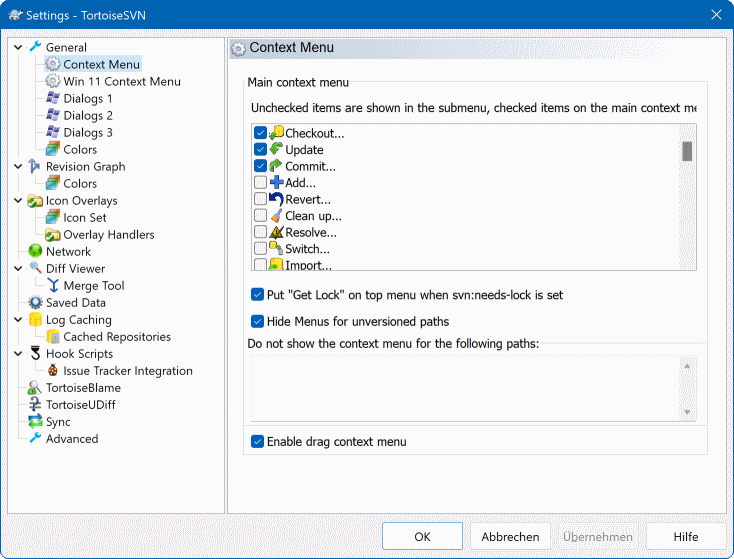
Windows 10 Steps
- Open File Explorer and locate a folder under SVN version control.
- Right-click the folder, then select TortoiseSVN → Settings (or select Settings directly if it is shown).
- In the TortoiseSVN Settings window, select Context Menu in the left sidebar.
- Under Main context menu, check the commands you want on the main right-click menu. Leave other commands unchecked to keep them in the TortoiseSVN submenu. Use the suggested selections above as a reference.
- Also ensure that Put "Get Lock" on top..., Hide Menus for unversioned paths, and Enable drag context menu are checked as well.
- Click Apply or OK. Right-click the working-copy folder again to verify the menu.
Windows 11 Steps
- Open File Explorer and locate a folder under SVN version control.
- Right-click the folder. If you see TortoiseSVN → Settings, select it. Otherwise choose Show more options (or press Shift + F10 with the folder selected), then select TortoiseSVN → Settings from the classic context menu.
- To configure the classic right-click menu, open Context Menu in TortoiseSVN Settings and match the suggested checkboxes above. Checked commands appear on the classic menu; unchecked commands remain in the TortoiseSVN submenu when applicable.
- To configure Windows 11's new compact context menu, select the separate Win 11 Context Menu settings page and choose the available commands there. This page has its own selections; the list of supported commands may be different from the classic menu.
- Click Register Context Menu (this may take a few moments), then click Apply, then OK. On a few occations the menu items didn't register without these steps, although it shouldn't need these extra steps. Right-click the folder to verify the new menu, and use Show more options to check the classic menu when needed.
Windows 11 registration note: The Win 11 Context Menu settings page provides a registration button for TortoiseSVN's context-menu entries. According to TortoiseSVN's documentation, it is normally necessary only if TortoiseSVN was installed under a different Windows user account.
Reference: TortoiseSVN official context-menu settings documentation.