Git: Settings & Important Information
UCalgary Baja — quick reference for members with an existing local clone
New to Git? Start with the Complete Beginner's Guide before using this reference. These settings use Windows Command Prompt (cmd.exe) on Windows 10/11, including the Command Prompt profile in Windows Terminal, Git for Windows, and SSH-based repositories under GitHub UCBaja.
1. Team branch policy — read first
Every member works on their own personal branch, named after themselves (for example, alex). Reuse that branch for ongoing work; do not create a new branch for each task. Do not work directly on main or dev. Normal code changes go through a pull request into dev. Only approved and tested code is promoted from dev into main through the release process.
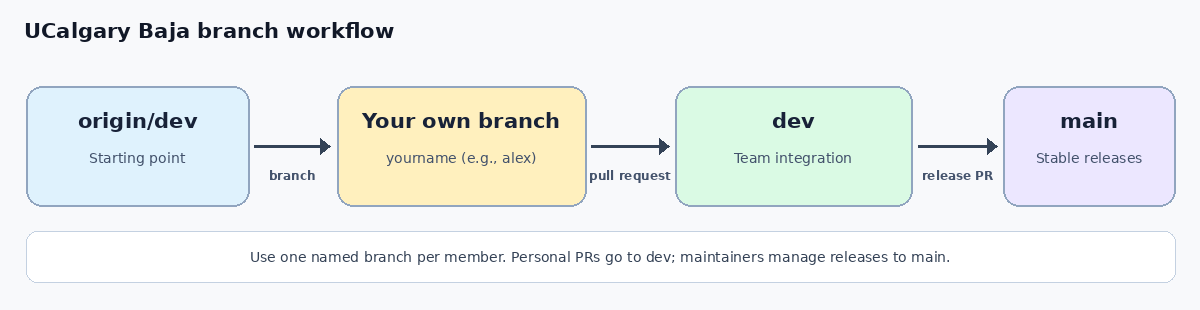
| Branch | Purpose | Who should make changes here? |
|---|---|---|
main |
Stable/release code | Maintainers through the approved release process; not direct member commits. |
dev |
Shared integration and testing | Changes arriving through reviewed PRs; not direct member commits. |
yourname (e.g., alex) |
Your ongoing personal branch | You. Commit and push here, then request PRs into dev. |
Branch names: Use the name agreed on with your team or maintainer (for example, alex or sam). Keep using that branch for your project, even when you move to a new task.
Required first commands after cloning
git fetch origin
git branch -r
If origin/yourname does not exist, create your named personal branch from origin/dev:
git switch --no-track -c {{yourname}} origin/dev
If origin/yourname already exists, use that branch instead:
git switch --track origin/{{yourname}}
Replace yourname with your actual username (for example, alex); run only one branch setup command. Confirm with git branch --show-current. If origin/dev is absent when creating a new branch, ask a maintainer which branch to use.
2. Required identity settings
git config --global user.name "Your Name"
git config --global user.email "you@example.com"
Use an email verified on GitHub, or your GitHub-provided no-reply address. These settings control commit authorship, not whether you can sign in to GitHub.
View values:
git config --global user.name
git config --global user.email
git config --list --show-origin
Use repository-only settings (without --global) if a specific project needs a different identity:
git config user.name "Your Name"
git config user.email "you@example.com"
3. Recommended optional safety settings
REM Remove stale remote-tracking names during fetch (does not delete local branches).
git config --global fetch.prune true

REM Make plain git pull refuse to create an unplanned merge commit.
git config --global pull.ff only
With pull.ff=only, an ordinary git pull stops if the remote and local branches have diverged, rather than trying to combine them automatically. This is intentional. The setting does not prevent an explicit git merge origin/dev when updating your personal branch.
Windows file endings: Follow any .gitattributes in the repository. Do not randomly change core.autocrlf or convert all project files' line endings; coordinate a repository-wide policy with maintainers.
4. SSH details that matter
GitHub SSH clone URLs normally look like:
git@github.com:UCBaja/{{REPO_NAME}}.git
Replace REPO_NAME with the actual repository name and prefer copying the exact URL from GitHub → Code → SSH. Private repository access depends on your GitHub account permissions.
| File / command | Meaning |
|---|---|
%USERPROFILE%\.ssh\id_ed25519 |
Private SSH key in your Windows user profile: never share. |
%USERPROFILE%\.ssh\id_ed25519.pub |
Public key: register on GitHub. |
ssh-add -l |
Show keys known to the Windows SSH agent, if configured. |
ssh -T git@github.com |
Test GitHub authentication; success includes a "does not provide shell access" notice. |
git remote -v |
Show the actual clone/fetch/push destination. |
GitHub SSH settings: https://github.com/settings/keys. Check GitHub's SSH fingerprints before accepting an unfamiliar host key.
Optional: Windows SSH agent for remembering your key passphrase. If you want to use it, open Command Prompt as Administrator and run these commands (the Windows OpenSSH Authentication Agent service must be installed):
sc config ssh-agent start= auto
sc start ssh-agent
Then, in your normal (non-administrator) Command Prompt, run:
ssh-add "%USERPROFILE%\.ssh\id_ed25519"
This setup is optional. If the SSH agent is unavailable, you can still authenticate by entering the key passphrase when asked. Do not run Linux or PowerShell shell-setup commands in Command Prompt.
SSH keys and GitHub sign-in passkeys are separate technologies. A passkey used in browser sign-in does not replace setting up the SSH key for this workflow.
5. Common commands (run inside the cloned repo)
| Purpose | Command |
|---|---|
| Check current branch | git branch --show-current |
| Check edited/staged files | git status |
| Get remote updates safely | git fetch origin |
| List local branches | git branch |
| List remote branches | git branch -r |
| Inspect remote location | git remote -v |
Create your personal branch once from dev |
git fetch origin then git switch --no-track -c {{yourname}} origin/dev |
| Switch to your existing local personal branch | git switch {{yourname}} |
| Set up an existing remote personal branch | git fetch origin then git switch --track origin/{{yourname}} |
| View unstaged changes | git diff |
| Stage one specific file | git add ".\path\to\file.txt" |
| Review staged changes | git diff --staged |
| Commit changes locally | git commit -m "Describe your change" |
| Push your personal branch for the first time | git push -u origin {{yourname}} |
| Push additional commits from that branch | git push |
Update personal branch with new dev commits |
git fetch origin then git merge origin/dev (while on your personal branch, with clean or committed local edits) |
| Inspect branch/upstream connections | git branch -vv |
| View recent commits | git log --oneline -5 |
Replace yourname with your real branch name, and use that exact current branch name when pushing. Never substitute main or dev.
6. The day-to-day cycle
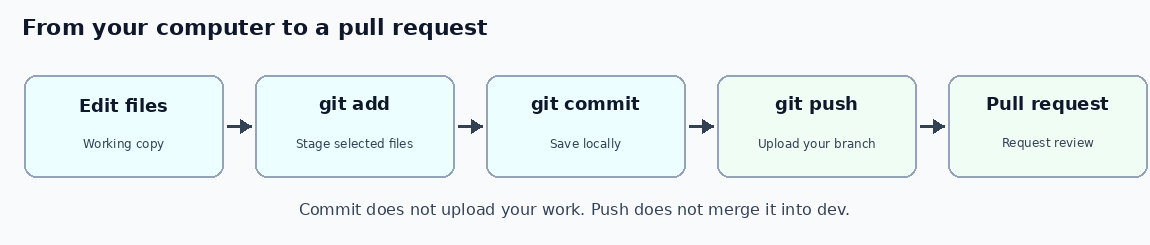
- Confirm that your terminal is on your personal branch:
git branch --show-current. - Edit the project; inspect with
git statusandgit diff. - Stage only intended changes; commit locally.
- Push your personal branch, not the shared branches.
- Open or update a GitHub PR with base
devand compare your named personal branch. - After a change is merged, keep using the same personal branch. Before starting more work, merge the updated
origin/devinto it; ask a maintainer if Git reports conflicts or a squash merge leaves old commits showing up in your next PR.
A commit is local until you push; a push does not mean the PR has been accepted or merged. A local clone does not automatically update itself when teammates commit; fetch/pull or merge are deliberate actions.
7. Files and directories to recognize
| Item | Why it matters |
|---|---|
.git/ |
Internal Git history and configuration. Do not delete or edit it manually. |
.gitignore |
Specifies intentionally untracked patterns; does not untrack files already committed. |
.gitattributes |
Can control line endings and other handling. |
README.md |
Often contains project-specific setup commands and requirements. |
.env, tokens, certificates, passwords |
Keep secrets out of Git; ask a maintainer how a particular app manages configuration. |
origin |
Common nickname for the GitHub remote. |
upstream |
In branch status, usually the remote branch paired with your local branch; should point to your own branch after git push -u. |
Where to store your clone: C:\Code\REPO_NAME is a reasonable example on Windows, but any suitable local folder can work. Avoid editing a second copy of a project and accidentally committing from the wrong one.
8. Common errors and important warnings
| Situation | Correct first action |
|---|---|
You're on main or dev before editing |
Create/switch to your personal branch. |
You committed on main/dev by mistake |
Do not push; ask a maintainer how to move your commit safely. |
Permission denied (publickey) |
Verify the public key was added to GitHub, confirm the matching private key is in your Windows .ssh folder, and test ssh -T git@github.com. If you configured the optional SSH agent, check it using ssh-add -l. |
| GitHub says "Repository not found" | Verify exact URL, repository invitation/membership, and permissions. |
origin/dev doesn't exist |
Confirm the repository's intended starting branch with a maintainer. |
git pull refuses to fast-forward |
Your histories may have diverged; do not force-push or hard reset to "fix" it. Inspect branch/upstream and seek help. |
| Git reports a merge conflict | git status tells you which files conflict. Resolve them carefully, or use git merge --abort while the merge is still in progress. |
| You see unrecognized changed files | Review them before git add. Never stage unrelated build outputs or secrets. |
Commands to avoid unless you understand their consequences: git push --force, git reset --hard, git clean -fd, rewriting a published branch's history. These can delete local work or replace remote commits.
9. Related documentation and official references
- Complete Beginner's Guide — initial installation, SSH key creation, cloning, and first PR.
- Git for Windows.
- Git documentation.
- GitHub: SSH authentication.
- GitHub: Cloning a repository.
- GitHub: Creating a pull request.
Images above are embedded directly as Base64 PNGs and need no external image assets. Certain Markdown viewers strip data: image URLs; the surrounding written instructions remain complete.